By LisaUpdated on May 13, 2026
Summary:
Ads are always annoying to all Hulu With Ads subscribers. In order to help you enjoy uninterrupted entertainment, here are 4 simple methods to block Hulu ads on PC and mobile devices. You can easily watch Hulu without ads with or without Hulu ad-free account.
Hulu is not a free streaming platform. As long as you haven't subscribed to Hulu (No Ads), you'll have to watch ads before and during most of Hulu's content. For Hulu ad-supported users, these annoying ad interruptions can negatively compromise the viewing experience. Therefore, many Hulu With Ads users wonder how to watch Hulu without ads.
In this article, we've gathered 4 effective methods to block ads on Hulu on PC, Mac or mobile, including using the best Hulu ad blocker & downloader - iMovieTool Hulu Video Downloder - to help you quickly download Hulu videos to MP4 for ad-free offline playback. Scroll down to check them out!
Method 1. Upgrade to Hulu's Ad-Free Plan
The simplest way to block Hulu ads is to upgrade your subscription to Hulu's ad-free plan. Hulu offers two primary tiers: the ad-supported plan and the Hulu (No Ads) plan. With the Hulu ad-free plan, you can enjoy your favorite series without worrying about ads appearing every few minutes. Better yet, you can even download Hulu videos to watch offline!
Hulu Plans and Prices:
- Hulu (With Ads): $11.99/month ($119.99/year).
- Hulu (No Ads): $18.99/month.
- Hulu + Live TV (With Ads): $89.99/month (includes Disney+ and ESPN+).
- Hulu (No Ads) + Live TV: $99.99–$101.99/month.
📌 Note:
It is important to note that even with the ad-free plan, a small amount of ads may still appear in certain content. To watch Hulu videos with no ads at all, you can move to Method 4.
Method 2. Try a Premium VPN to Block Hulu Ads
Some Premium VPNs such as ExpressVPN and NordVPN offer built-in ad blocking and malware protection. When connected to the right server, this can help bypass or reduce ads on Hulu by altering your virtual location and network routing. However, However, Hulu blocks VPN IPs, and VPN ad blockers can't stop in-stream ads, often resulting in blank screens instead of true ad removal.
Method 3. Use an Ad Blocker Extension
There is no a dedicated Hulu app for mac OS and Windows OS. Many desktop users rely on a browser to access Hulu video content online. Fortunately, there are some useful Hulu ad blocker extension for browsers like Google Chrome, Opera, etc. Hulu Ad Skipper is a good option. Once installation, it can detect and get rid of ads on Hulu when streaming through a web browser.
Follow below steps to install the Hulu Ad Skipper to block Hulu ads. Here we take Google Chrome as an example.
Step 1. Open your Chrome browser, go to Chrome Web Store.
Step 2. Search for "Hulu Ad Skipper", and click "Add to Chrome" button.

Step 3. After installation, enable the extension in your browser.
Step 4. Open Hulu website in your browser and start streaming any show or movie without ads interruption!
Method 4. Download and Watch Hulu Without Ads via iMovieTool (Best)
The methods above to block Hulu ads are often inconvenient. They may risk account restrictions, and still rely on a stable internet connection for smooth streaming. A more reliable solution is to use a professional Hulu video downloader to download Hulu videos to MP4 locally. This allows you to watch Hulu without ads offline anytime without interruptions.
Compatible with Mac and Windows, iMovieTool Hulu Video Downloader helps you remove ads from Hulu video with an ad-supported account and download Hulu videos to your computer folder. It boasts a professional built-in web browser, which lets you browse the whole video library, search for any content, and download any video without the Hulu app.
As for Hulu video downloading, it can batch download save Hulu movies, TV shows and original videos to common videos formats including MP4, and MKV. The program guarantees FHD 1080p output definitions, and retains the original audio tracks and subtitles. In addition, the download speed can be boosted to 50X faster, saving you much time. After downloading, you can watch Hulu offline permanently without ad interruption, no expiration, no Hulu add needed.
Key Features of iMovieTool Hulu Video Downloader:
- Download Hulu movies and TV shows in HD quality
- Download Hulu videos to PC/Mac in MP4 or MKV format
- Remove ads from Hulu videos automatically
- Batch download entire seasons of a TV show from Hulu
- Preserve multilingual subtitles and audio tracks
- Keep embedded or external subtitles in your downloaded files
- Works with all Hulu subscription plans
- Offline watch Hulu without ads on any device
With a simple and neat interface, here are simple steps to download Hulu videos to MP4 with iMovieTool Hulu Video Downloder, and watch Hulu videos offline without ads.
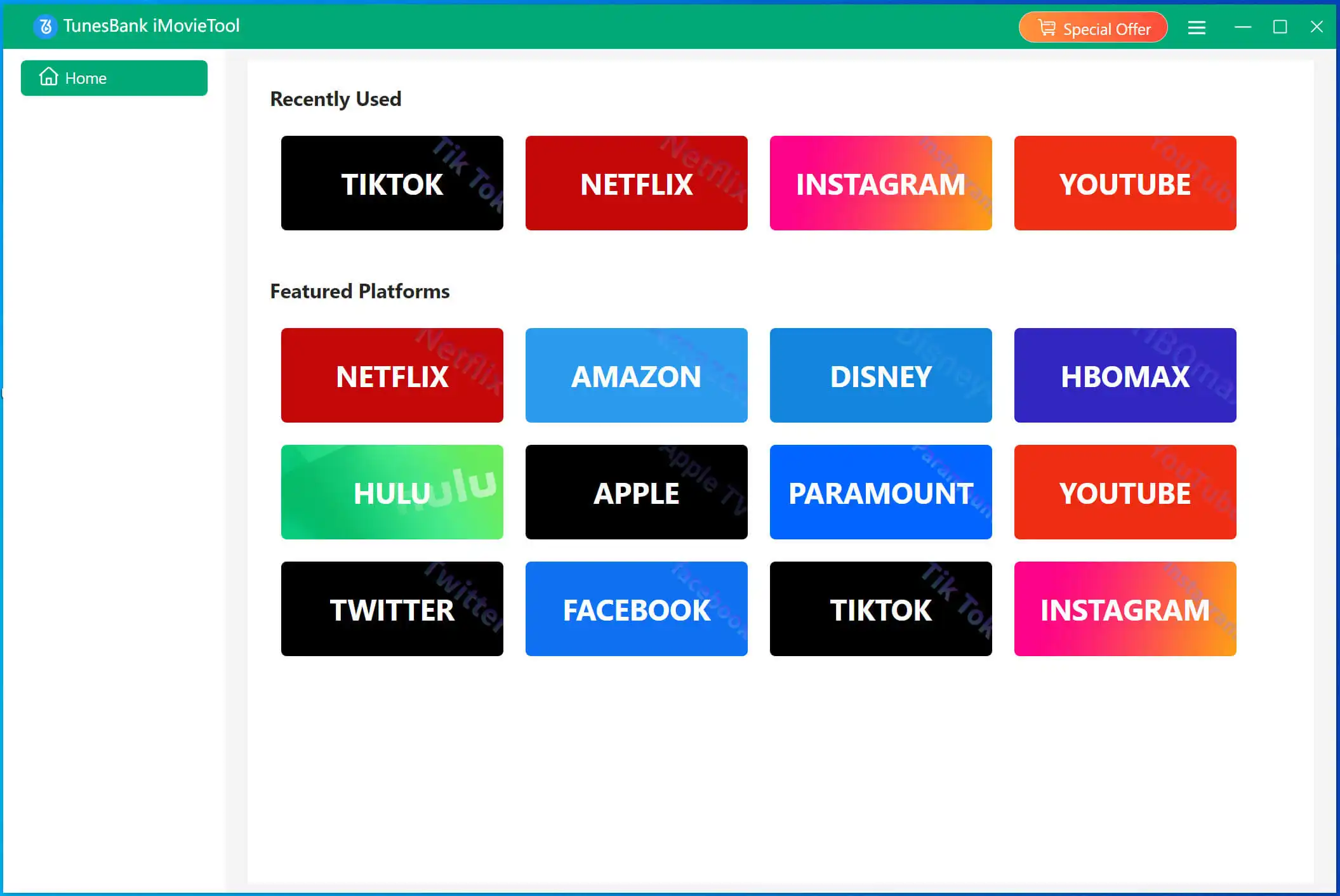
Step 1. Open iMovieTool Hulu Video Downloader
Open iMovieTool software on your computer. In the main interface, you need to select Hulu service to enter the iMovieTool Hulu Video Downloader and enjoy the download features.
Step 2. Sign in with Hulu Ad-Supported Account
Choose a country, you can select Hulu US, Hulu JP, or Hulu JP Store.

Sign in with your Hulu ad-supported or ad-free account on the software to access the full Hulu content library.

Step 3. Search for Hulu Videos in Three Ways
iMovieTool provides three convenient ways to find the videos you want to download, ensuring you can block Hulu ads on any video you choose.
1# Search by Video Name: Go to the "Search" tab, type the title of the movie or TV show into the search bar. The program will display relevant results from Hulu's library.
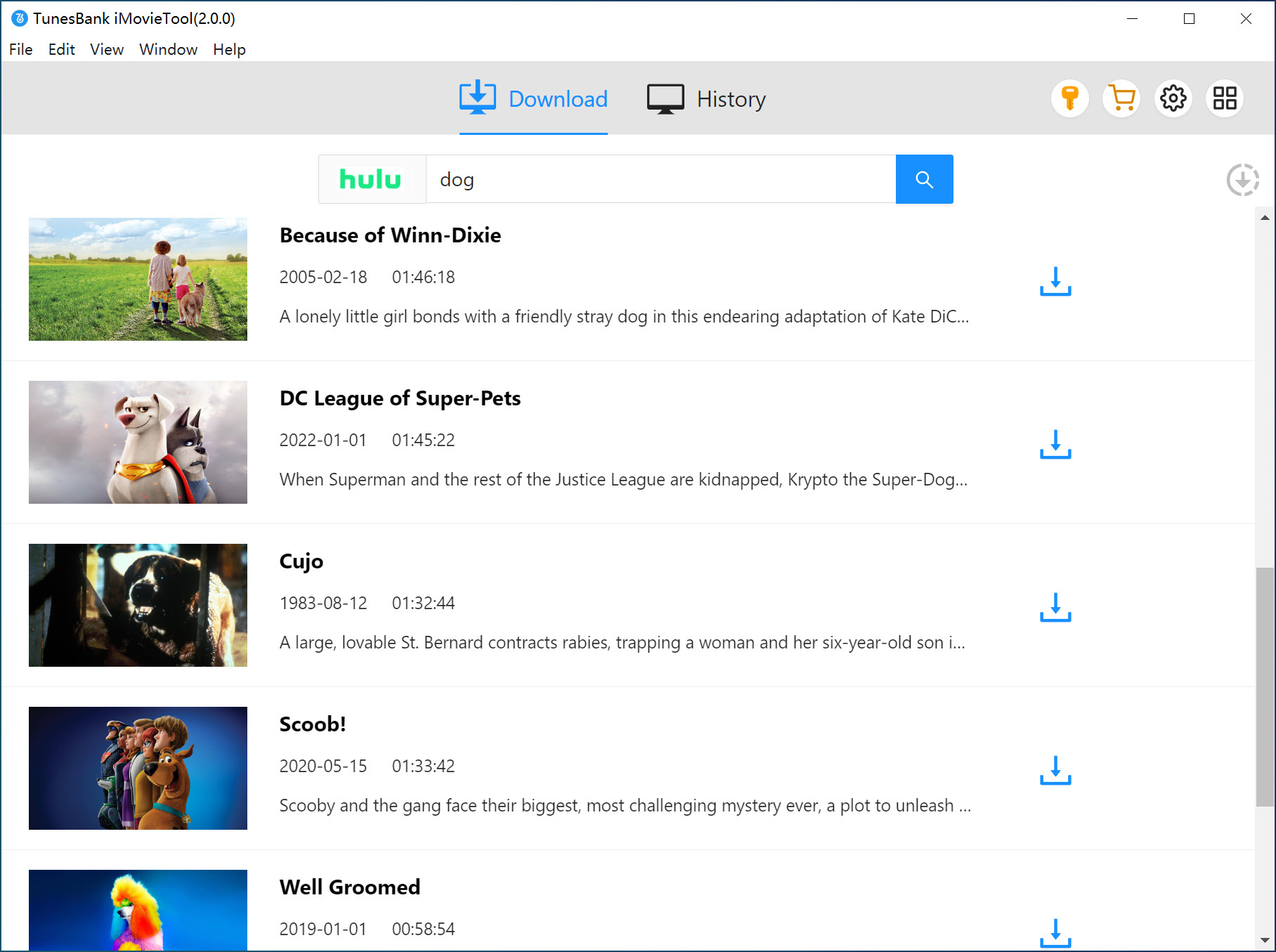
2# Search Using Video URL: Copy the Hulu video URL from your browser and paste it into the search box. The downloader will analyze the link and load the video for download.
3# Browse Hulu Library: Switch to "Browse" tab, you can also browse Hulu content directly within the built-in web player and select the movies or episodes you want to download. Open any video and click "+" icon to add it to the download queue.
Step 4. Define Output Settings
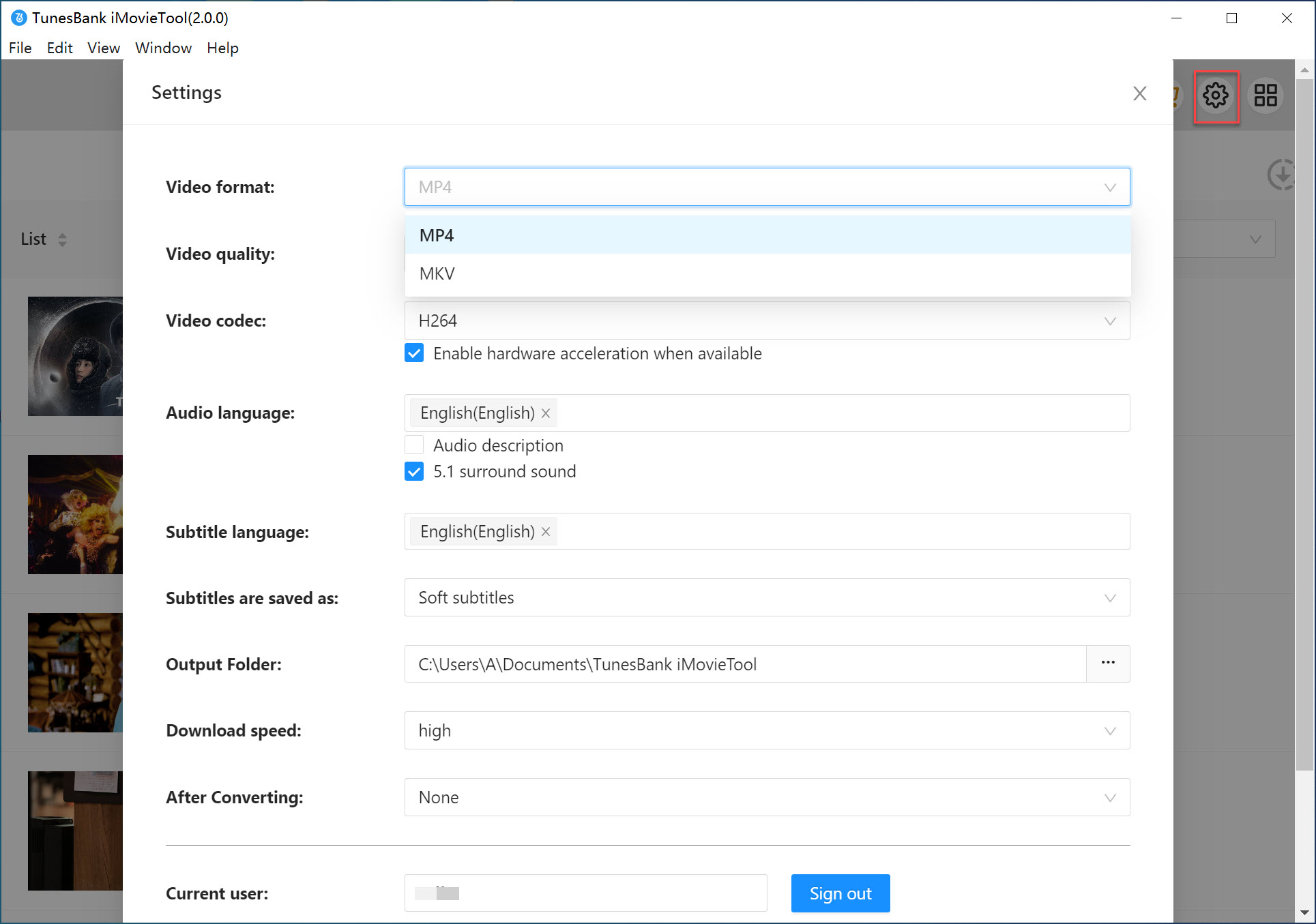
In this step, go to the Menu at the upper right corner, choose Preference. Here, you can select the output format (MP4 is recommended for maximum compatibility), choose your preferred video quality (high), select audio track and subtitle, and set the destination folder where your Hulu video files will be saved.
Step 5. Download Hulu Videos to MP4
Next, hit on the "Download" icon next to the movie title. The software will start processing the Hulu movie and download it to your computer in MP4 format without advertisements.
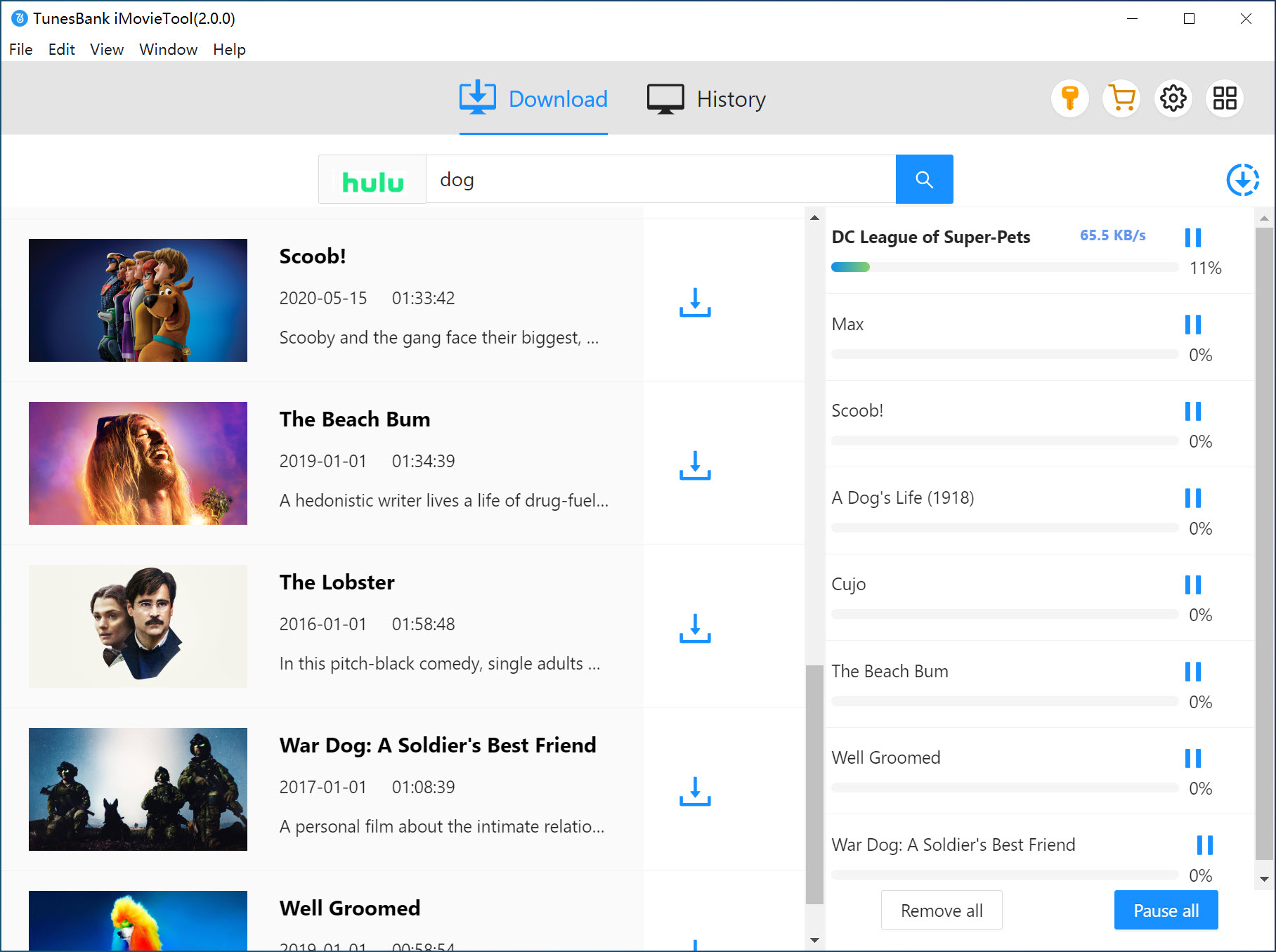
For downloading TV shows from Hulu, select specific episodes or seasons in the pop-up window. Confirm your selection and click "Download" to start the process. iMovieTool will begin downloading the video and automatically remove ads from Hulu videos during the conversion .
Step 6. Get Downloaded Ad-free Hulu Video Files
After the download completes, navigate to the "History" tab within the software. Click the blue folder icon to open the output folder on your local drive. You can then transfer these Hulu MP4 videos files to any device, play them in any media player, and watch Hulu without ads forever, even if you cancel your Hulu subscription.

Conclusion
Overall, there are several methods to get rid of Hulu ads. You can upgrade to Hulu No Ads plan, use a Premium VPN service, open an Hulu ad blocker extension, or utilize a third-party Hulu video downloader. The most effective and save way to block Hulu ads forever is using iMovieTool Hulu Video Downloader. It helps you remove ads and download Hulu videos to computer with an ad-supported account. Most importantly, you can keep these Hulu downloads forever and enjoy them offline on any device or player anytime, anywhere!

Comments
Sorry the comment has been closed.
Comments are off!