By LisaUpdated on March 13, 2026
📢 Summary:
Learn how to download movies on Netflix on laptop using iMovieTool Netflix Video Downloader, Chromebook support, older Netflix Windows app, or an Android emulator. Watch Netflix offline on laptop anytime, anywhere!
Question: "Does anyone know how to download Netflix movies on to my laptop to watch offline? I use windows 10."
- A Netflix user asked on Facebook
Quick Answer: Since July, 2024, Netflix has stopped supporting downloads on Windows app. To save Netflix movies on a laptop offline, you can use a third-party Netflix video downloader.
Downloading Netflix movies to your laptop gives you the freedom to watch offline and enjoy your favorite movies on the flight without network connection. But you may find that it becomes challenging to download Netflix movies on PC or laptop because Netflix has removed the download feature from its Windows App. And the download feature is currently limited to mobile devices and Chromebook.
So, how to download Netflix videos on laptop for offline viewing? This article will explore multiple solutions to download Netflix movies on Windows laptop and other laptop models, whether you are using a Chromebook, Windows laptop, or another system. Let's go!
Method 1. Download Netflix Movies on Google Chromebook Laptop
If you are using a Chromebook laptop, downloading Netflix content is relatively simple. Unlike traditional Windows laptops, Chromebooks support Android applications through the Google Play Store. This means you can install the Netflix mobile app and use its built-in download feature to download Netflix movies on laptop directly. Now, follow below steps:
Step 1. Open Google Play Store on your Chromebook.
Step 2. Search for Netflix, and install the official Netflix mobile application.
Step 3. Launch the Netflix app and log in with your active Netflix account.
Step 4. Move to the Menu bar and find "Available for Download".
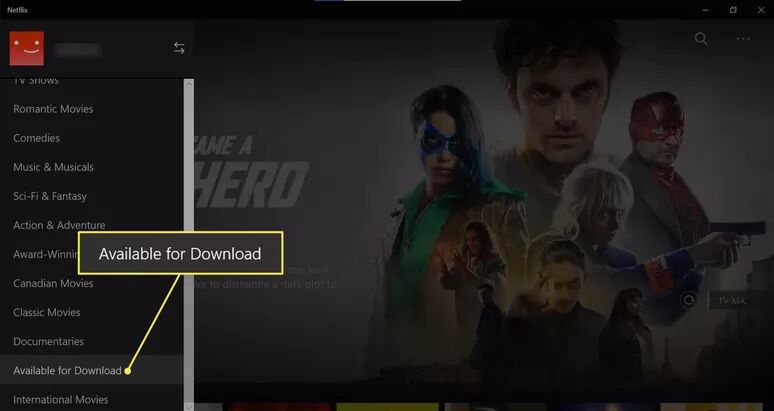
Step 5. Browse the movie or show you want to watch offline. Open a title and tap "Download" icon.
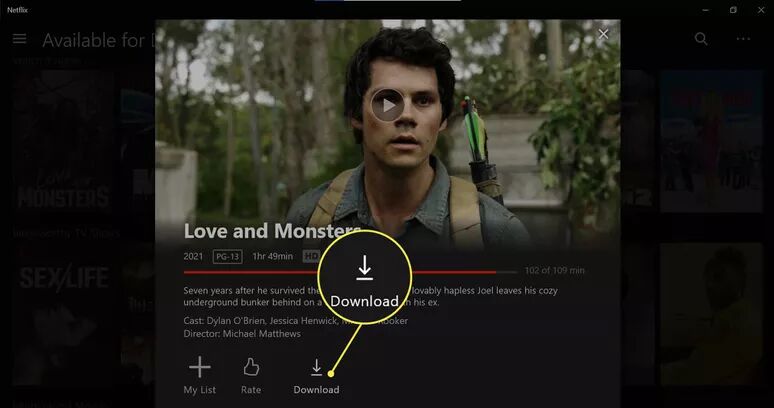
Step 6. After the download completes, open the "Downloads" section in the Netflix app to watch the movie offline.
Method 2. Download Netflix Movies on Laptop as MP4 with iMovieTool (Best)
When it comes to how to download Netflix on laptop, using a professional third-party tool will be the best option. Here you meet the iMovieTool Netflix Video Downloader, which allows users to download Netflix movies and shows on laptop with 1080p high quality and permanent storage. The downloaded Netflix videos are saved as standard MP4 or MKV files, with no expiration or playback restrictions.
Unlike the official Netflix app, this software works on Windows PCs, laptops, iMacs, and MacBooks, making it an ideal solution for different platforms. With a built-in Netflix web browser, users can log into their Netflix account directly within the software and access the entire Netflix library. Additionally, iMovieTool offers batch download functionality and preserves audio tracks and subtitles.
More Features of iMovieTool Netflix Video Downloader:
- Supports Windows PC, Windows laptop, iMac, and MacBook
- Download Netflix movies, TV shows, original videos without Netflix app
- Built-in Netflix web browser (no Netflix app required)
- Download Netflix videos to laptop and computer in MP4 or MKV
- Save Netflix videos in 1080p (Full HD) with original audio tracks
- Batch download entire seasons of a TV show and multiple movies
- Keep multiple audio languages and subtitle tracks
- Built-in web browser, no need to install the Netflix app
- Watch Netflix videos offline on any device or player without expiration.
Steps on How to Download Netflix Movies On Laptop in MP4?
Step 1. Open iMovieTool and Select Netflix
Download and install iMovieTool Video Downloader on your Windows laptop or MacBook. Launch the software and choose Netflix platform.
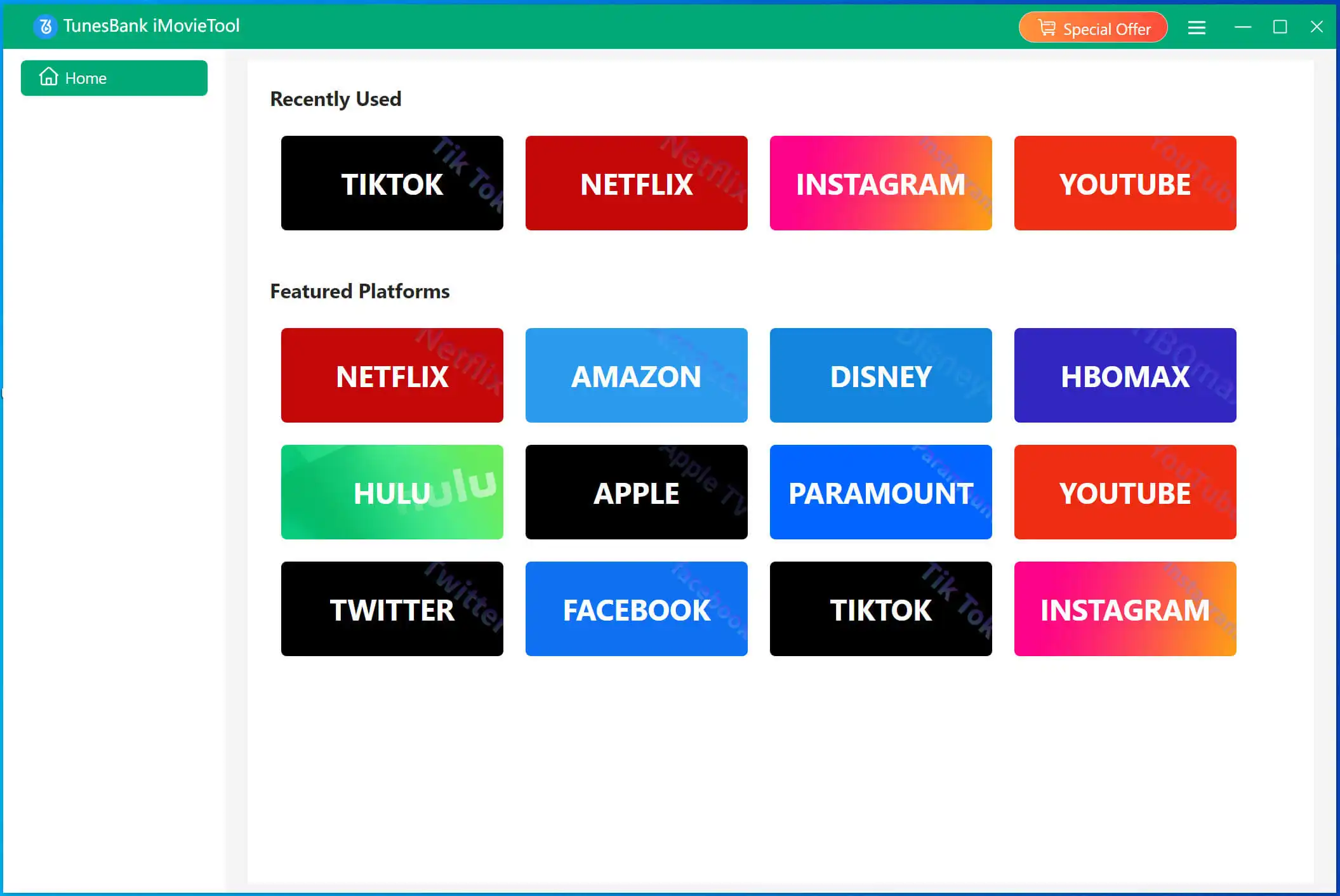
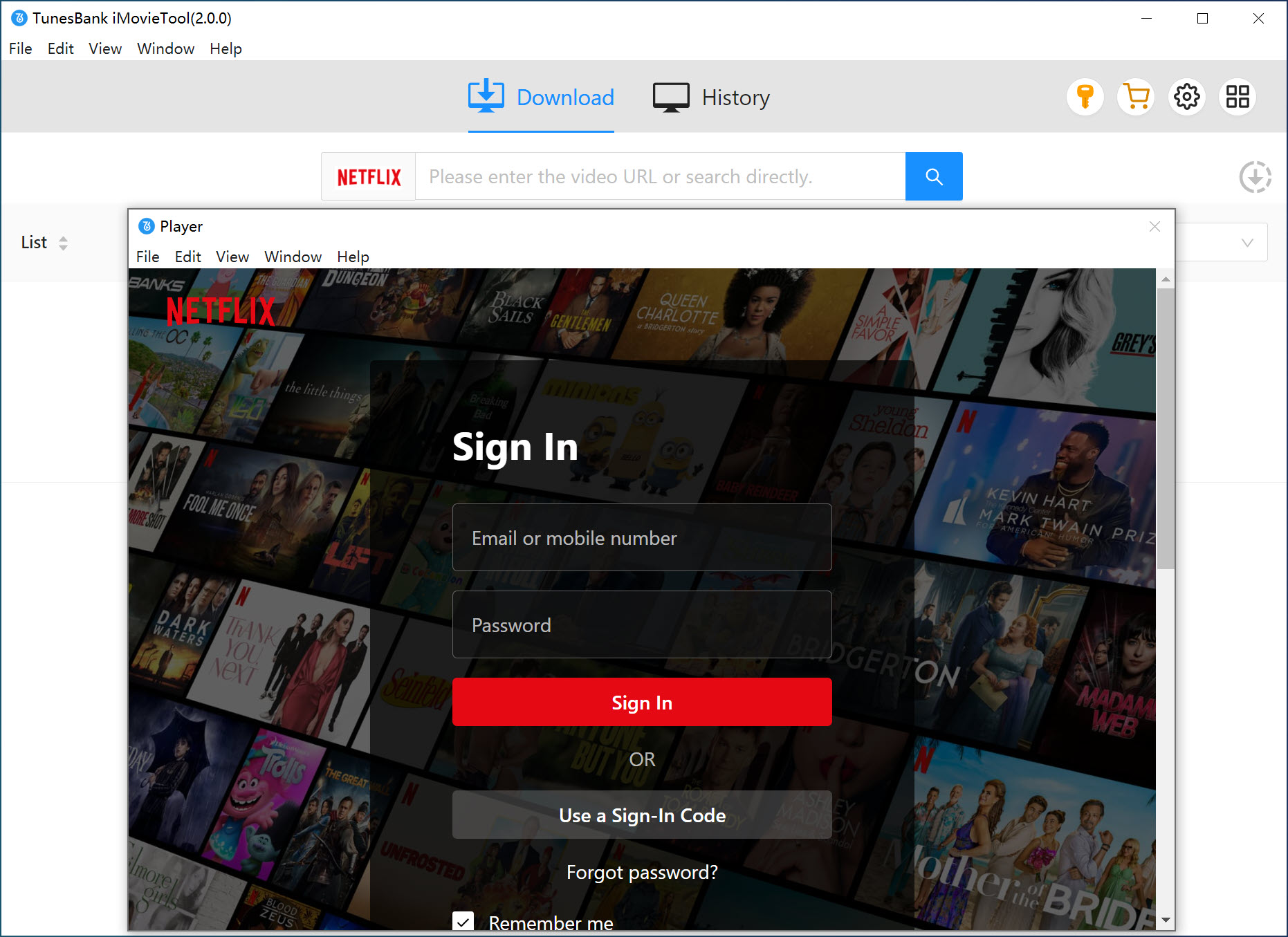
Next, you will enter the iMovieTool Netflix Video Downloader. To continue, please log in to your Netflix account on the software.
Step 2. Adjust Output Settings
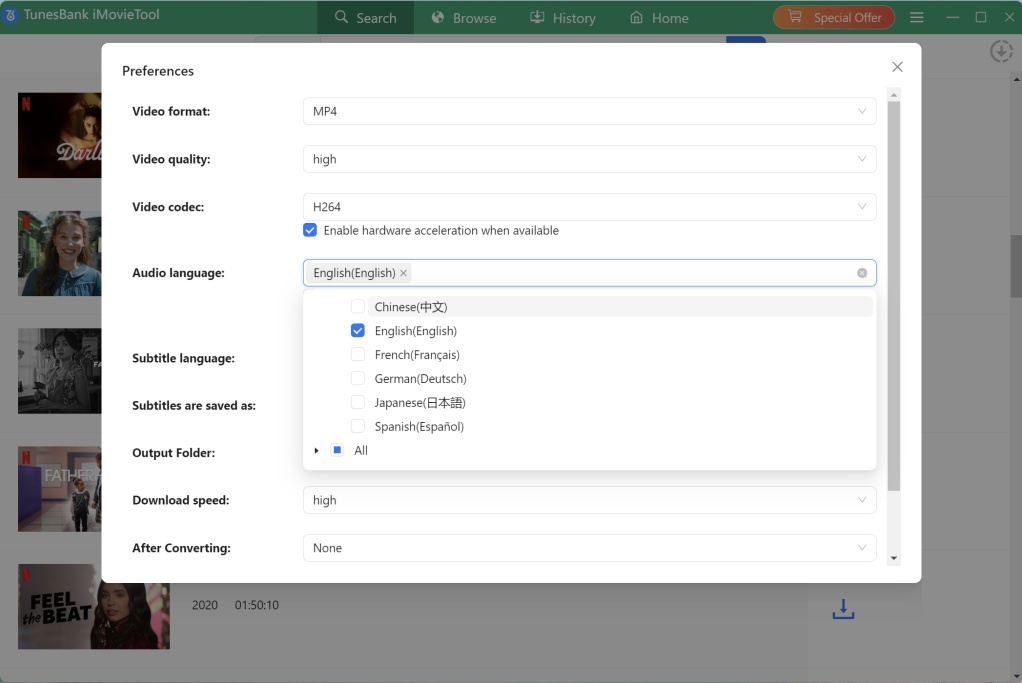
Before searching for content, click on the Menu > Preference. In the settings window, configure your preferences, such as video format, video codec, video quality, audio track and subtitle.
Step 3. Browse and Add Netflix Movies Online
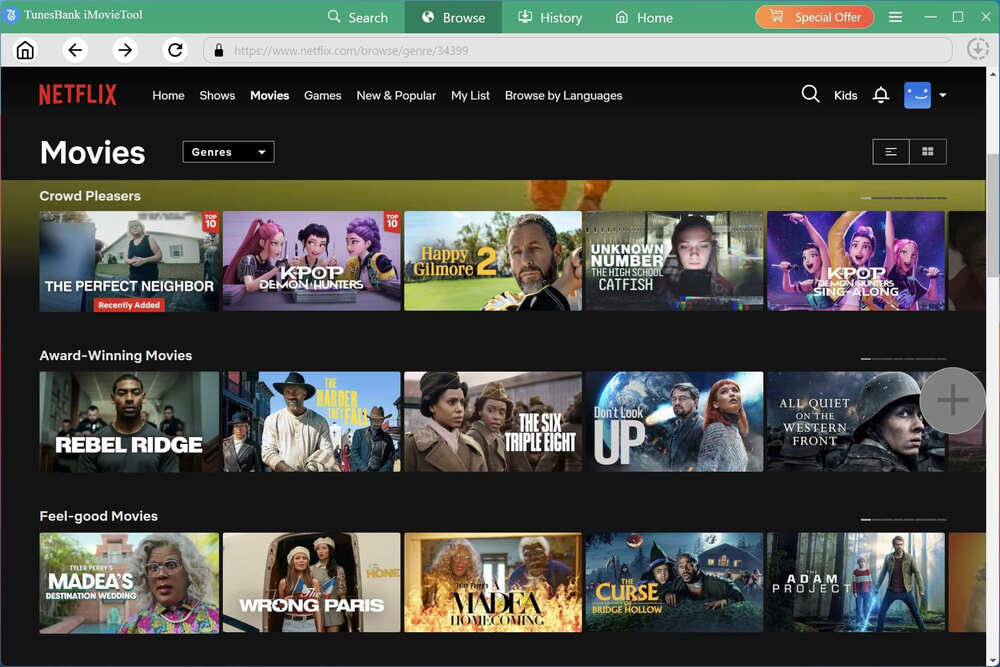
iMovieTool offers three intuitive ways to find the content you want to download, ensuring you can get Netflix downloads on laptop easily. Here we tap "Browse" tab. Browse through categories, genres, and recommendations just as you would on the official site.
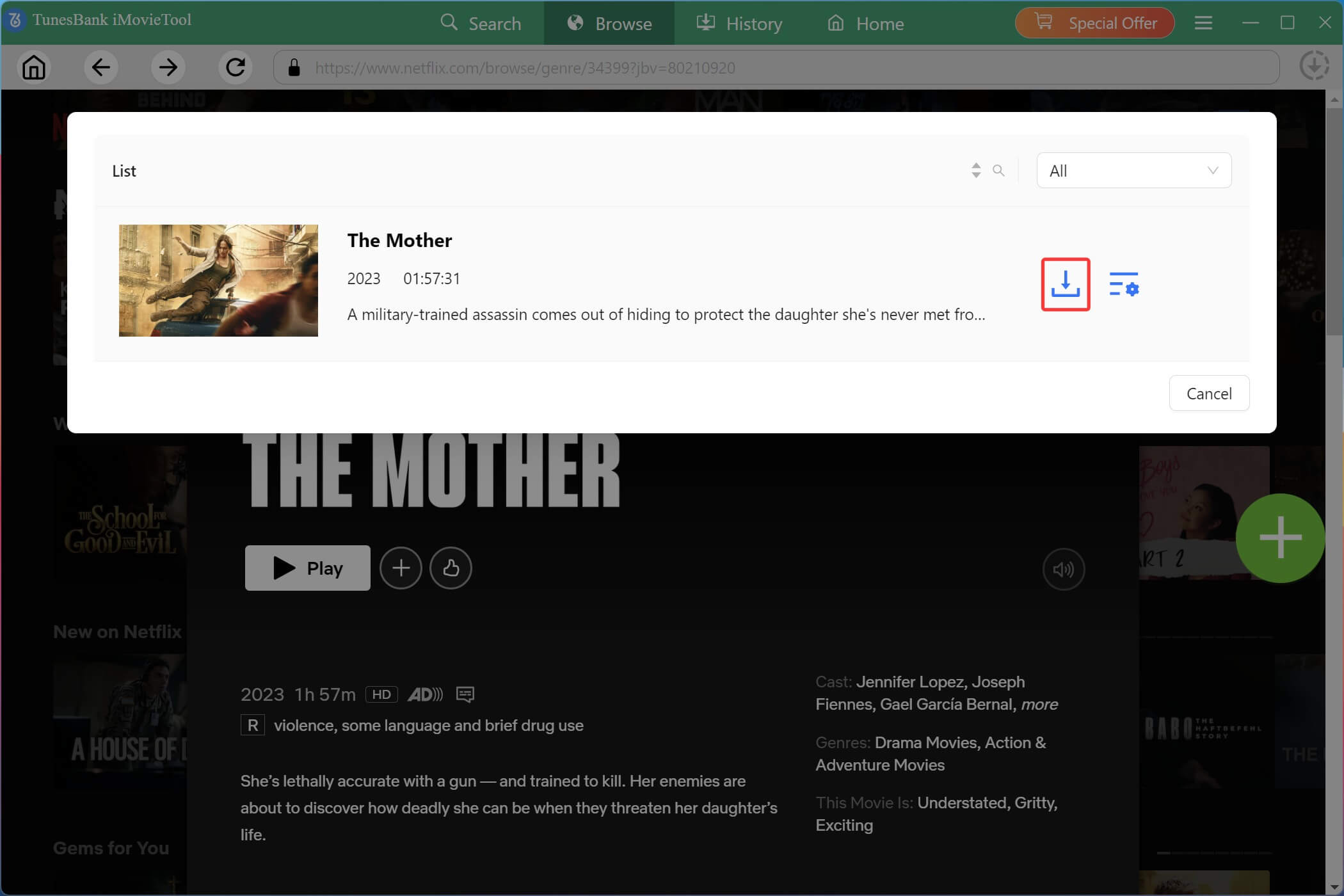
Then open a movie, and click "+" icon to add it to the download queue.
Tips::
You may also type the name of the movie or TV show, or paste the URL into the search bar. iMovieTool will display search results from Netflix.
Step 4. Download Netflix Movies to Laptop in MP4
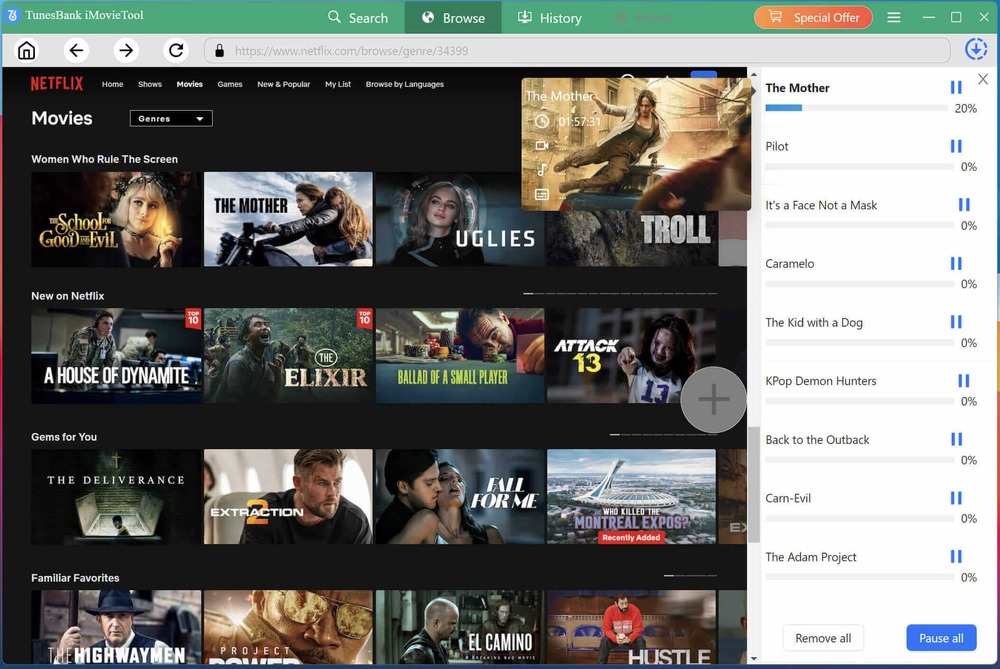
Once added successfully, it will pop up a new small window. Before downloading, you can click the "Gear" icon for advanced settings, such as resolution, subtitle, audio track, and more. If everything is ready, press on the "Download" button directly. iMovieTool will begin downloading and converting the Netflix video to MP4 format on your laptop.
Step 6. Get Downloaded Netflix Movies on Laptop
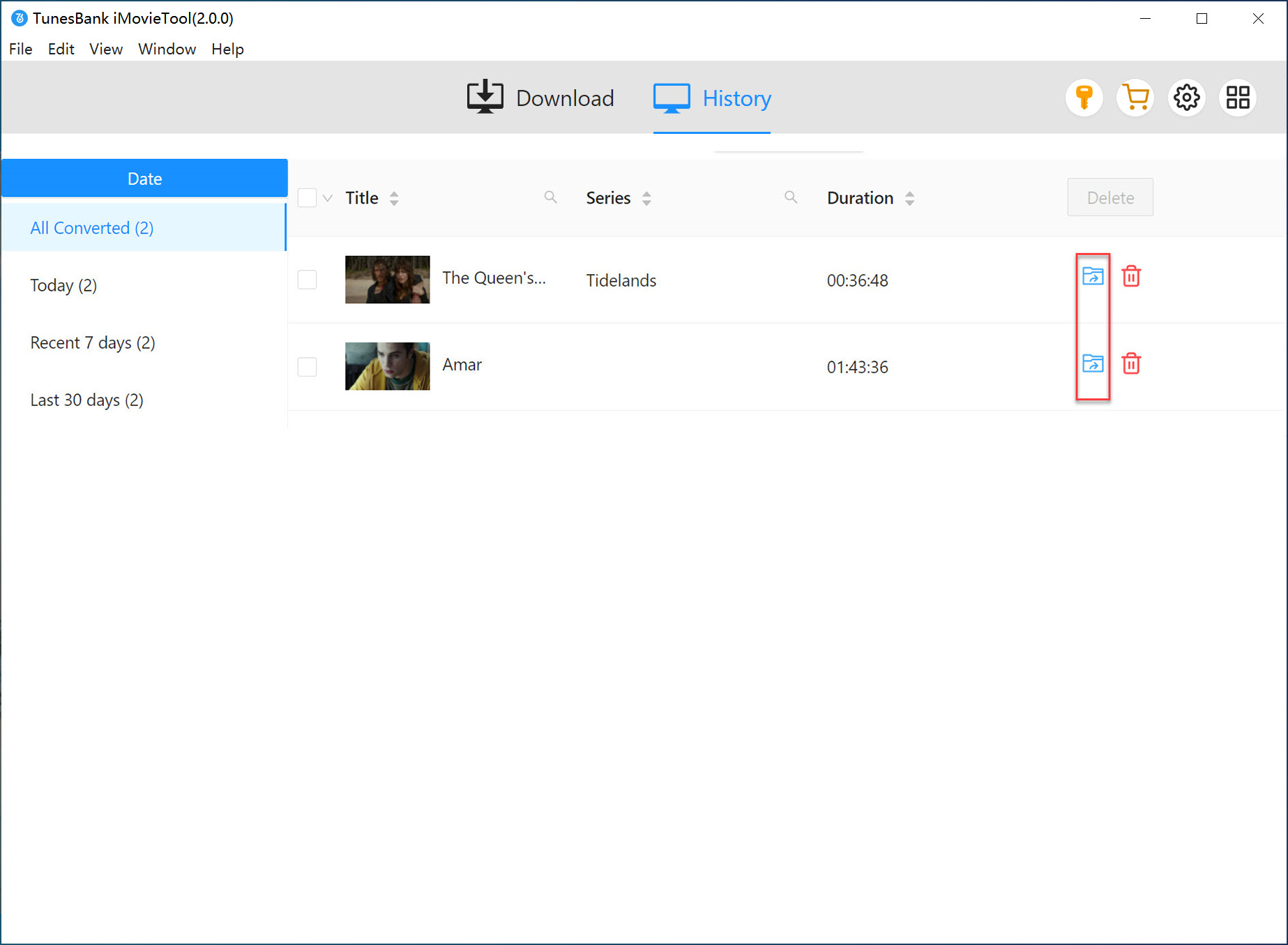
After the download completes, navigate to the "History" section of the program. Here, you'll see a list of all successfully downloaded movies. Simply click the folder icon next to any title and enjoy offline playback!
Method 3. Download Netflix Movies on Laptop with the Old Version App
To download and watch Netflix movies on laptop offline, you may also use the official Netflix app. Although the latest versions of the Netflix Windows app have removed the download feature, you can still install an older version such as Netflix app version 6.99.5.0 or below, to get access the download function.
To begin with, you need to:
1. Uninstall the Netflix app on your laptop.
Go to "Settings" > "Apps" > "Apps & features" on your Windows laptop. Find the Netflix app and click "Uninstall".
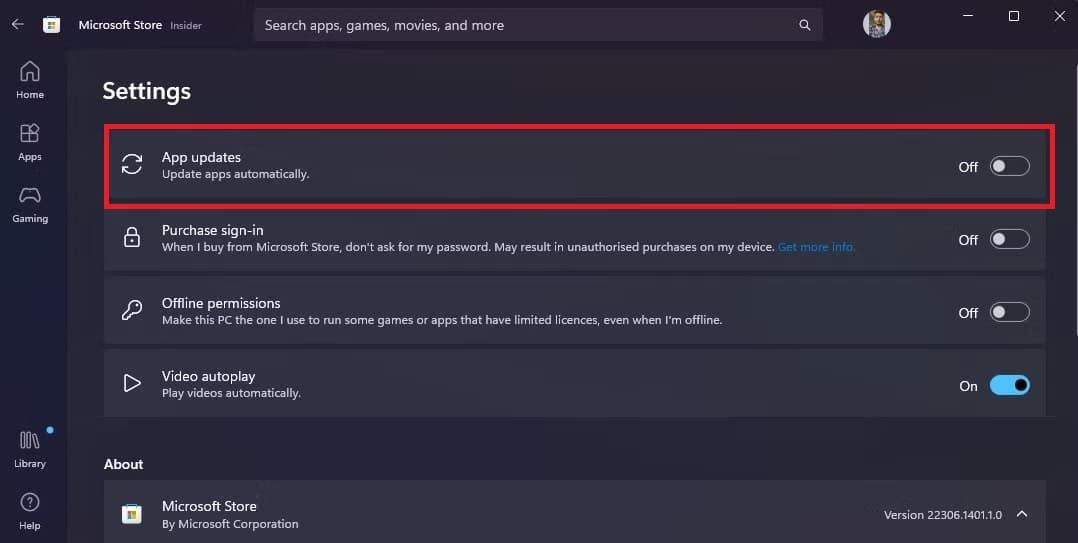
2. Turn off automatic updates in the Microsoft Store.
Open Microsoft Store, click your profile icon, select "App Settings", turn off "App updates".
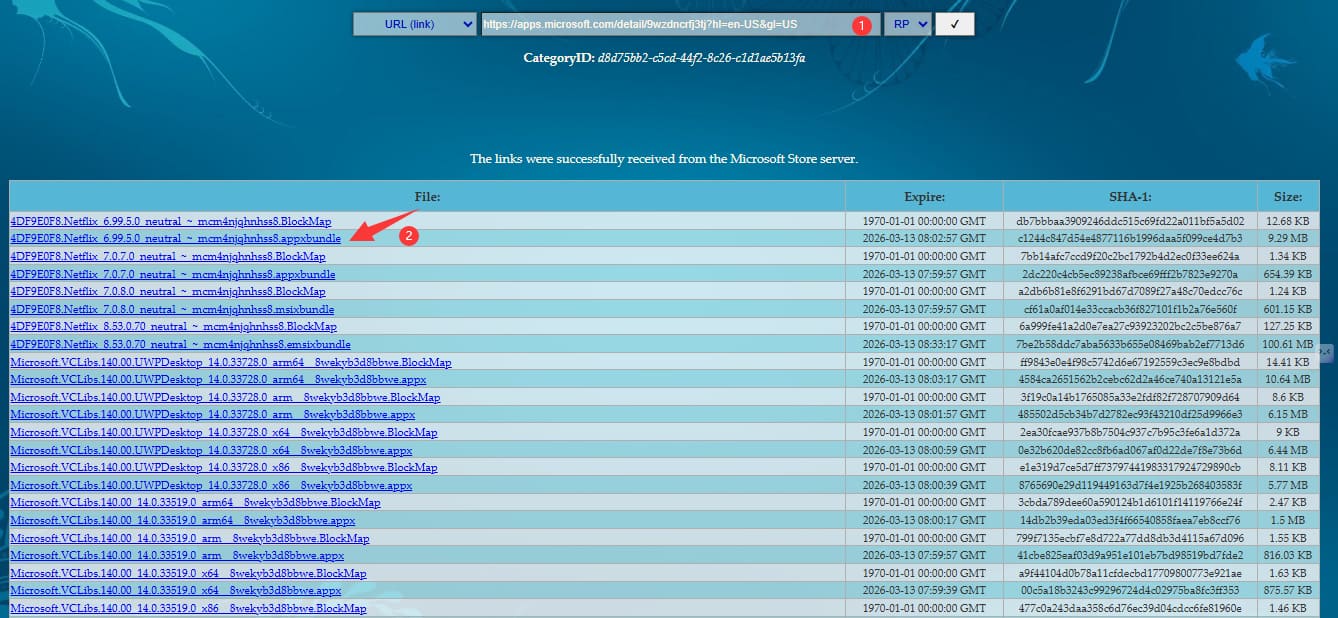
Step 1. Visit this page in your browser. Paste the Netflix app link from Microsoft Store in the search box.
Step 2. Select a Netflix older version such as 6.99.5.0 and download the package (.AppxBundle).
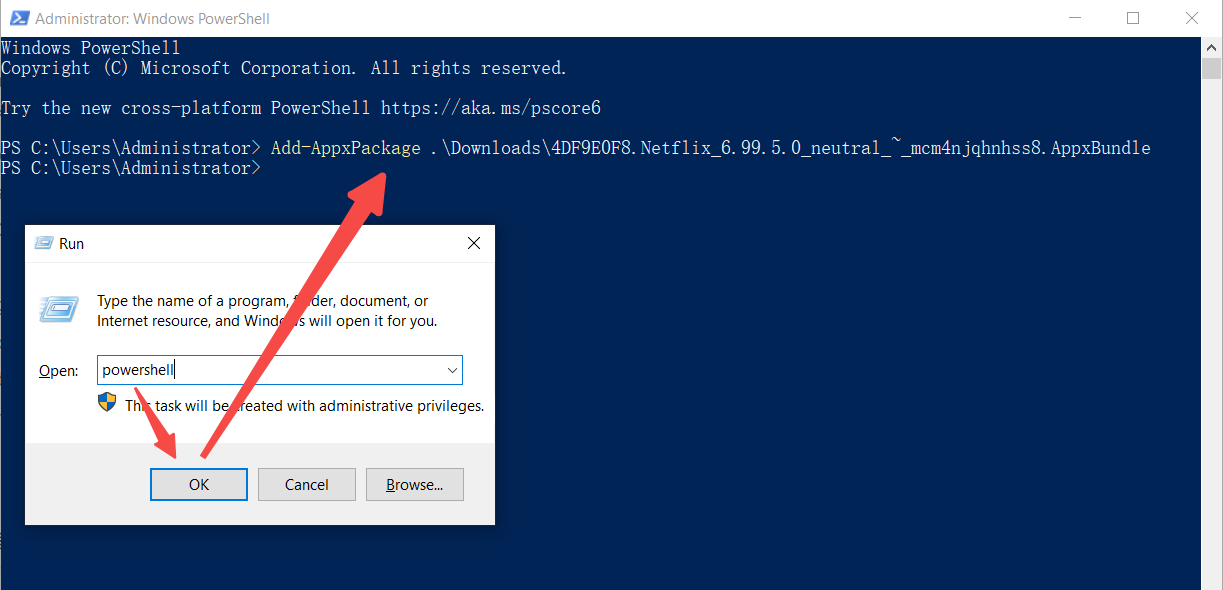
Step 3. Once you have securely downloaded the .AppxBundle file to your Downloads folder, press the "Windows key + R", type "PowerShell", and press "Enter" on keyboard. In the PowerShell window, type the following command and press "Enter":
Add-AppxPackage .\Downloads\4DF9E0F8.Netflix_6.99.5.0_neutral_~_mcm4njqhnhss8.AppxBundle
Step 4. After installation, open the Netflix app and log in to your Netflix account. You can then download Netflix movie or show on your laptop.
Method 4. Download Netflix Movies on Laptop with Android Simulator
Another way to download Netflix movies on laptop is by using an Android emulator. Android emulators allow you to run mobile apps on your Windows laptop or PC, making it possible to download Netflix content on laptop as convenient as doing so on Android device.
There are many Android emulators that work on both Windows and Mac, such as MEmu Play, MuMu Player, BlueStacks, and NoxPlayer, etc. Here we take MEmu Play as an example to show you the detailed guide:
Step 1. Download and install the MEmu Play Android emulator on your laptop.
Step 2. Launch the emulator and open the Google Play Store, sign in with your Google account.
Step 3. Search for the Netflix app and install it.
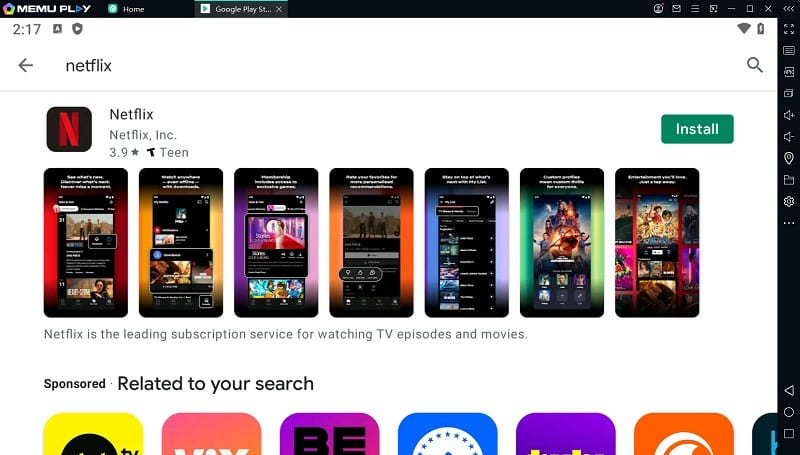
Step 4. Open Netflix app, and log in to your Netflix account.
Step 5. Find the movie or show you want to download. Click the "Download" icon to save it for offline viewing.
After the download completes, you can watch the Netflix movie inside the Netflix app within the emulator.
Conclusion
To sum up, to download Netflix movies on laptop, you can use Chromebook support, professional Netflix video downloaders, older versions of the Netflix app, and Android emulators. If you are seeking for the best and more reliable way to get Netflix downloads on laptop permanently, using the iMovieTool Netflix Video Downloader is the way to go. It allows you to download unlimited Netflix movies and shows on laptop without Netflix app, convert them to MP4 or MKV files, and keep them permanently without expiration. Now, install this tool and try its download function on your laptop!
iMovieTool Netflix Video Downloader
Download Netflix Movies/TV Shows to Laptop Easily!
Comments
Sorry the comment has been closed.
Comments are off!